

1
Refund or cancel the order, in Shopify
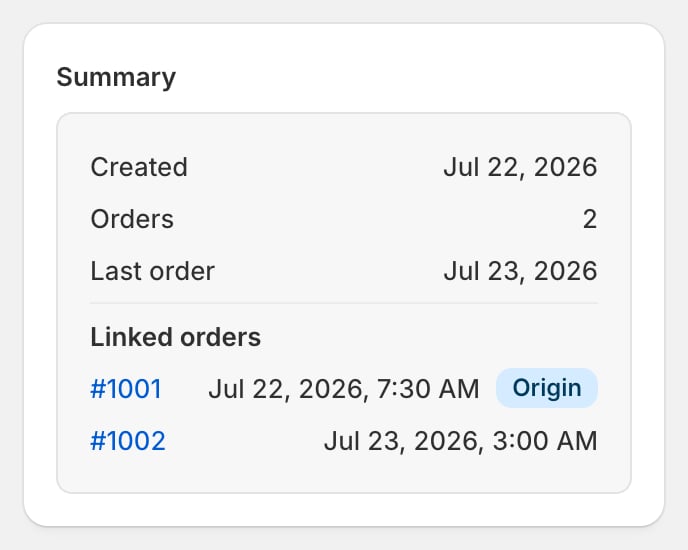
- Start from the subscription: the Summary card’s Linked orders list deep-links every order into the Shopify admin; the order that started the subscription carries an Origin badge.
- Refund, partially refund, or cancel it there, like any Shopify order. The platform mirrors the numbers and changes nothing else.
Checkpoint: the refund is done in Shopify.
2
Know what didn't happen
Nothing else moves. Surface by surface:
Checkpoint: the status badge, next billing date, and Billing history read exactly as before.
3
If the subscriber is done, cancel the subscription too
- A refund over one bad box may need no second move: the schedule keeps rolling.
- When they’re done, cancel the subscription as its own step: Cancel subscription in the title bar (Edit one subscription), or better, send a login link so they cancel in the portal and your cancellation flow gets its chance (When a subscriber asks for help).
- In reverse: cancelling a subscription refunds nothing by itself; money already charged stays charged until you refund it in Shopify.
Checkpoint: refunded in Shopify, cancelled here.
A refund doesn’t rewind rewards. The refunded order still counts toward reward progress, and a gift that shipped on it stays Processed (When a reward goes missing).
One order can belong to several subscriptions. Sibling subscriptions due the same day, on the same card, address, and currency, bill as one combined order: one charge row on the base subscription, and the order linked from all of them.