1
Plans on real products
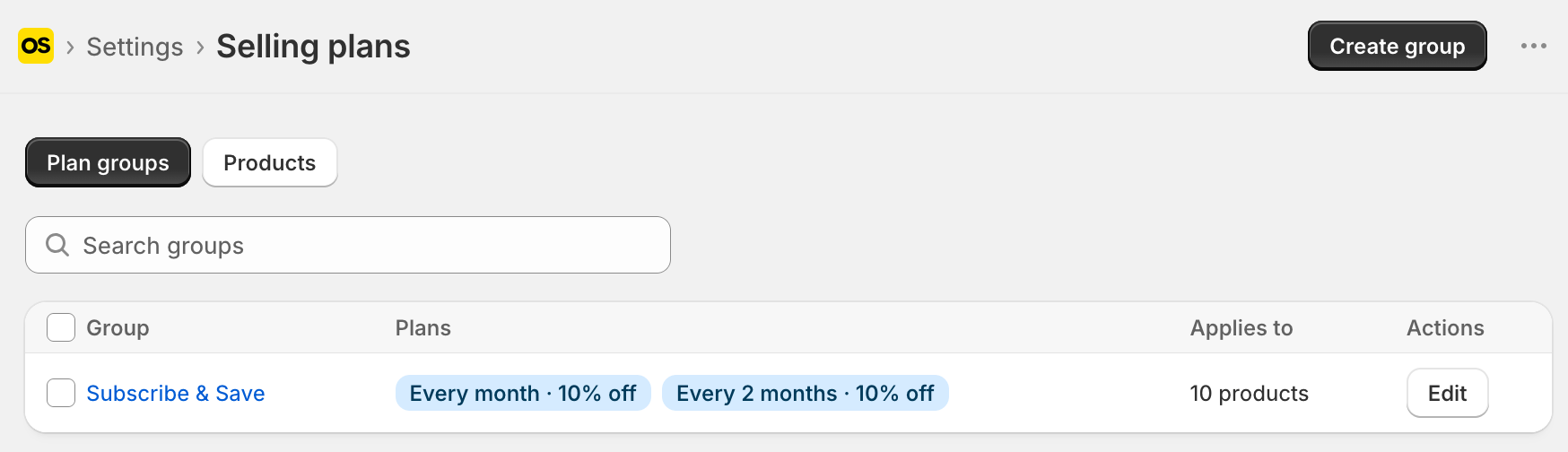
- In Settings > Selling plans, create your real plan groups and apply them to real products.
- Plans live in this store; dev plans don’t copy over.
- Build the actual set of plans you want to sell: your “Monthly · 10% subscribe & save,” plus the other frequencies and terms you intend to offer.
- You’ll see groups listed with product counts, and the Home checklist ticks Create a selling plan.
Checkpoint: real plans on real products.
2
Connect email and SMS
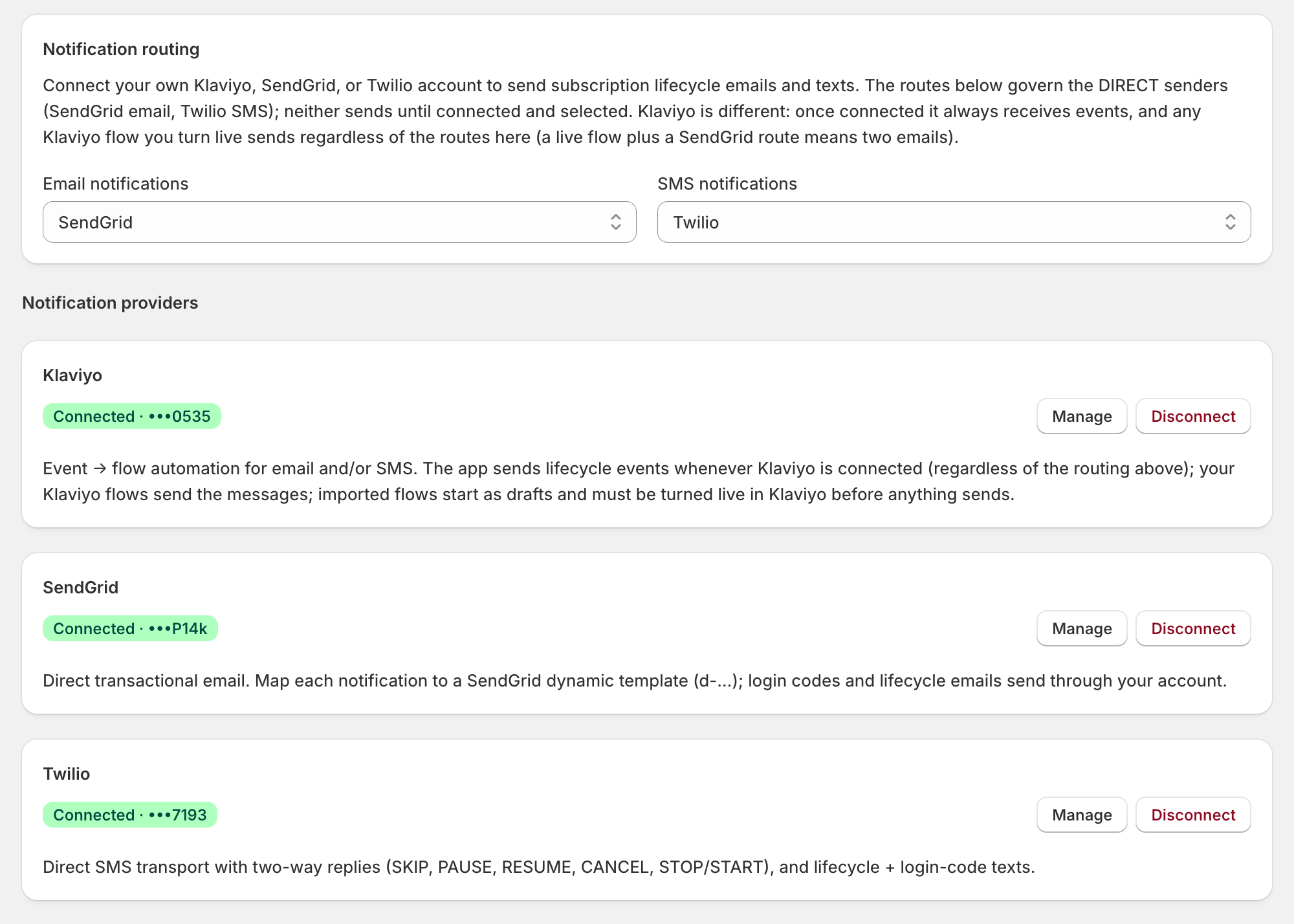
- In Settings > Integrations, connect this store’s email and SMS providers. Integrations are per-store: paste your keys again.
- Under Notification routing, set the Email notifications and SMS notifications routes, then Save: one sender per event, or your subscriber gets two emails.
- In Settings > Notifications > Email, click Set up templates & flows (Klaviyo) or Set up email templates (SendGrid). Branding bakes in at import; if you rebrand in the next step, hit Re-import.
- Then do what the Integrations page warns: Klaviyo flows import as drafts, so turn them live in Klaviyo or login codes won’t send. The same Email page shows each event’s live-or-draft status.
- In Settings > Notifications, turn on the events you need: a new install starts with every event off. On Twilio, also paste its two webhook URLs. Set up email and SMS is the full recipe.
The same Integrations screen also connects analytics, helpdesk, and monitoring tools. Set them up now, or later via Set up analytics and monitoring and Set up Gorgias.
Checkpoint: providers connected; routing saved; flows live, not drafts.
3
Brand the portal
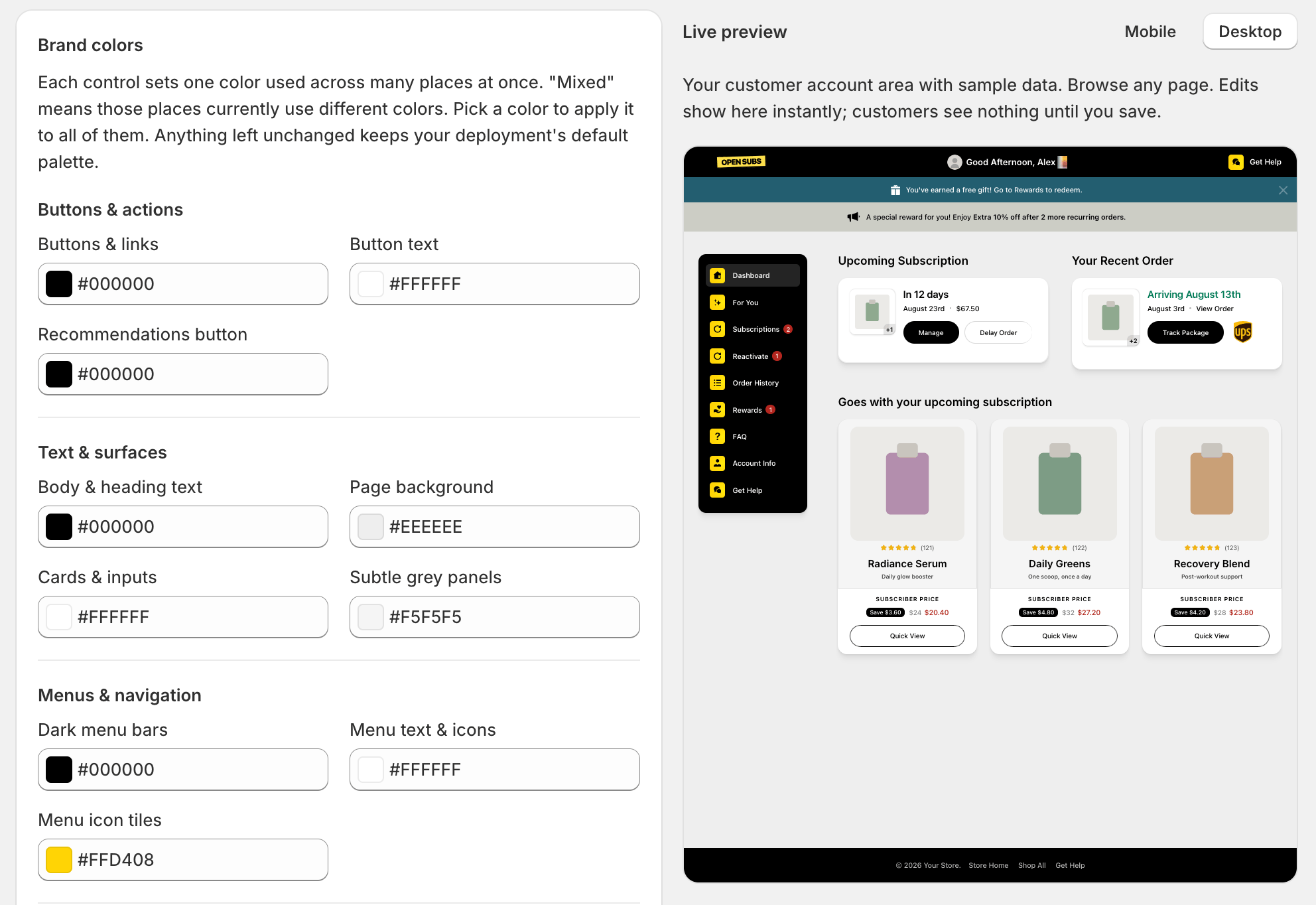
- In Settings > Branding, give the portal your real face: logo and colors start at defaults on a new store. Brand the portal is the full recipe.
- Add translations too, if you sell in more than one language.
- Already imported email templates in the last step? Hit Re-import there so your emails wear the new look too.
- Branding isn’t alone: every OpenSubs setting on this store starts at defaults. Skim the Settings page and re-set anything you tuned on the dev store, like payment recovery or rewards.
Checkpoint: portal preview wears your brand.
4
Build a cancellation flow
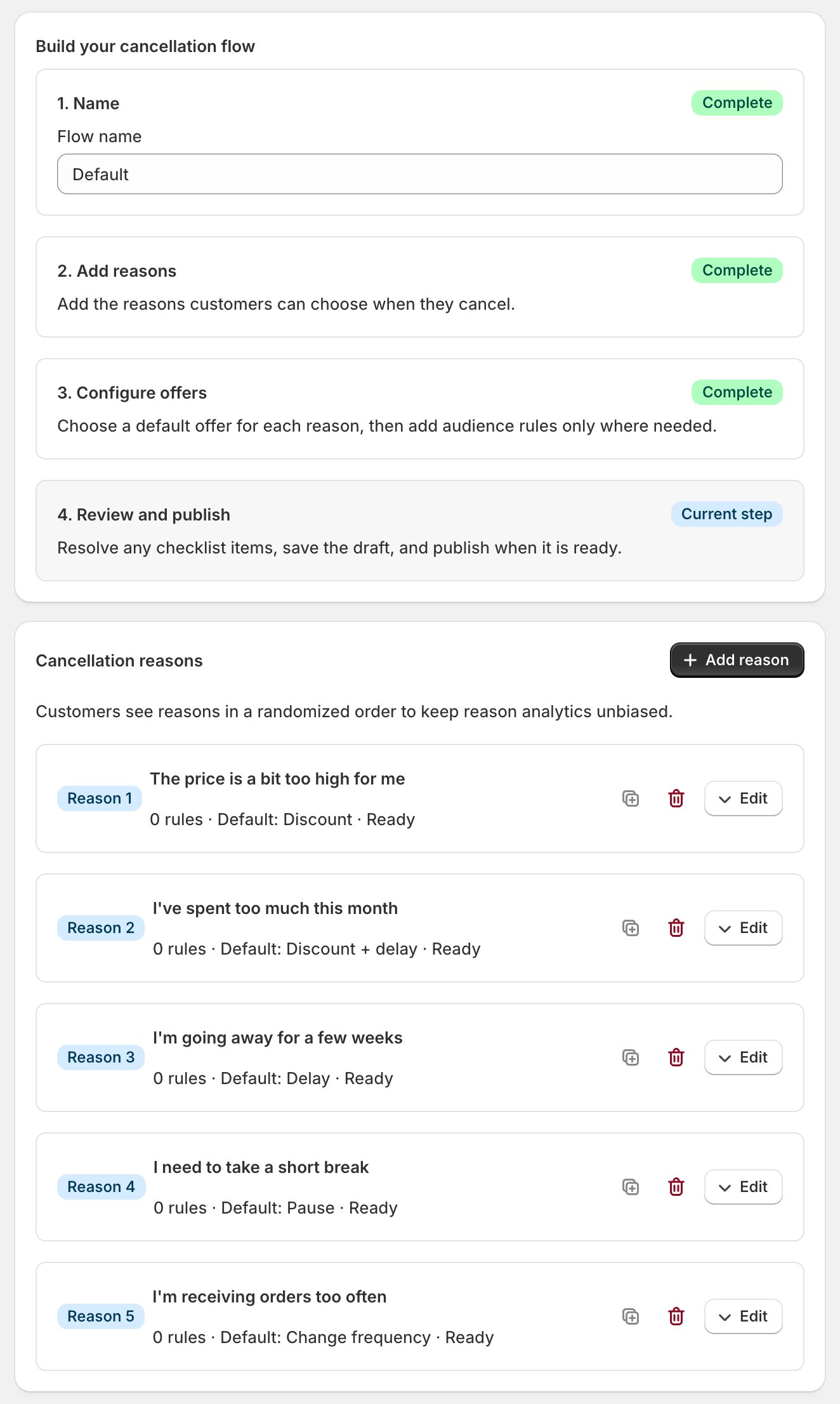
- In Settings > Cancellation flows, build what a subscriber sees when they try to cancel: save offers first (a discount, a free gift, or a pause), cancel as the last resort. Set up your cancellation flow is the full recipe.
- The Home checklist ticks Build a cancellation flow, and your team test-drives the flow in Prove it with real money.
Checkpoint: a cancellation flow built, with at least one save offer.