

1
Install on the dev store
The run deploys your Shopify config itself (the app’s URLs are written for you), then stops at Install on your store: the header is back to WAITING ON YOU.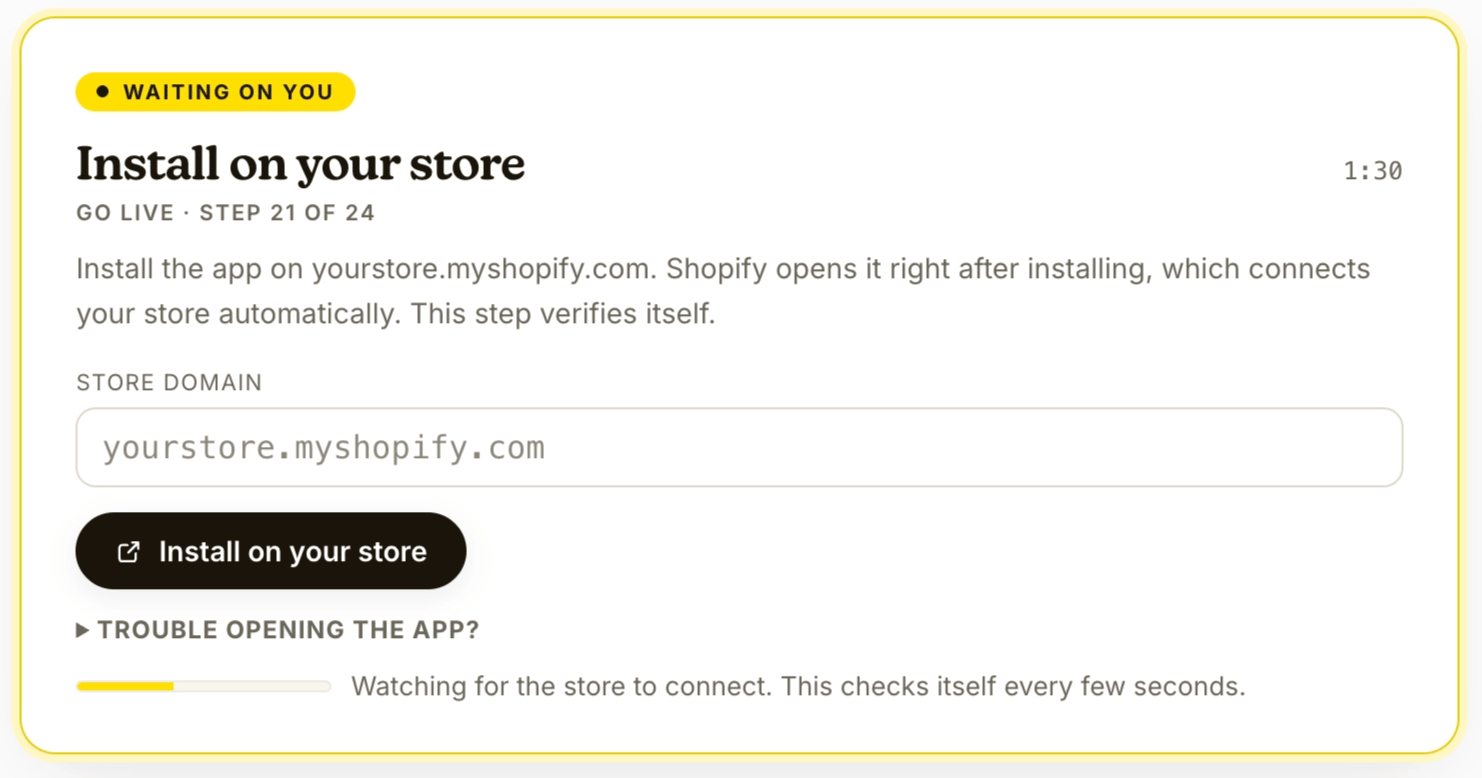
- Open your install link (already built from the domain you gave in Connect your accounts) and install on your dev store. Shopify opens the app right after installing, and that first open connects your store automatically.
- Come back to the run: it detects the connection, and Verify scopes passes by itself. (App never opened? Open it once from Apps > OpenSubs; it connects on open.)
Checkpoint: installed, connected, scopes verified. All without you.
2
Configure integrations, or skip
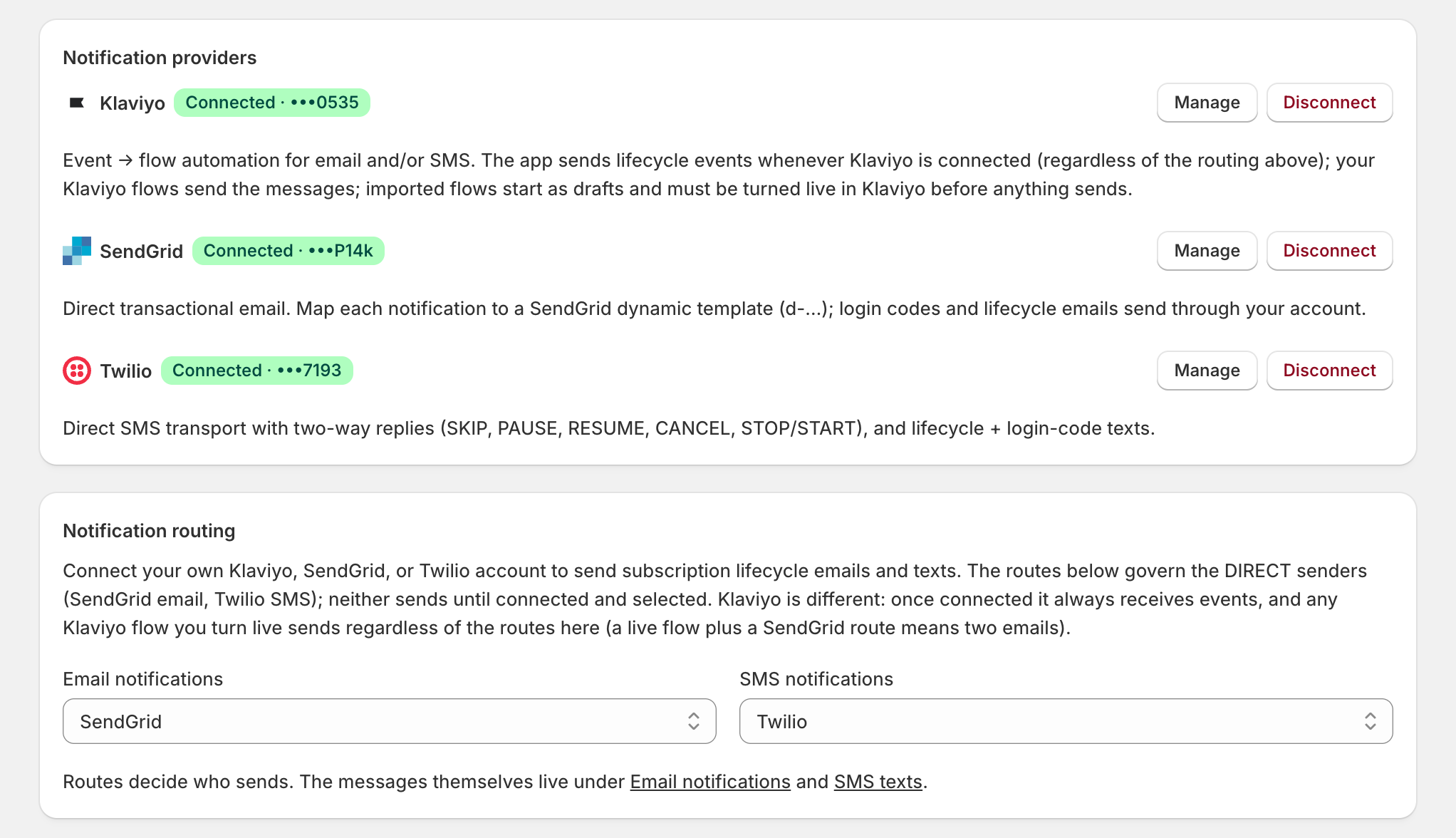
- In the dev store’s admin, under Apps > OpenSubs > Settings > Integrations, add your SendGrid, Klaviyo, or Twilio keys (each lives in the provider’s settings, under API keys) and send a test.
- The same page also connects analytics, monitoring, and helpdesk tools; those can wait until Set up analytics and monitoring and Set up Gorgias.
- Under Notification routing, select the active email and SMS routes and save. SendGrid and Twilio send only when routed; Klaviyo receives events whenever connected, so its live flows send regardless of routing.
- Back in the run, click Integrations configured.
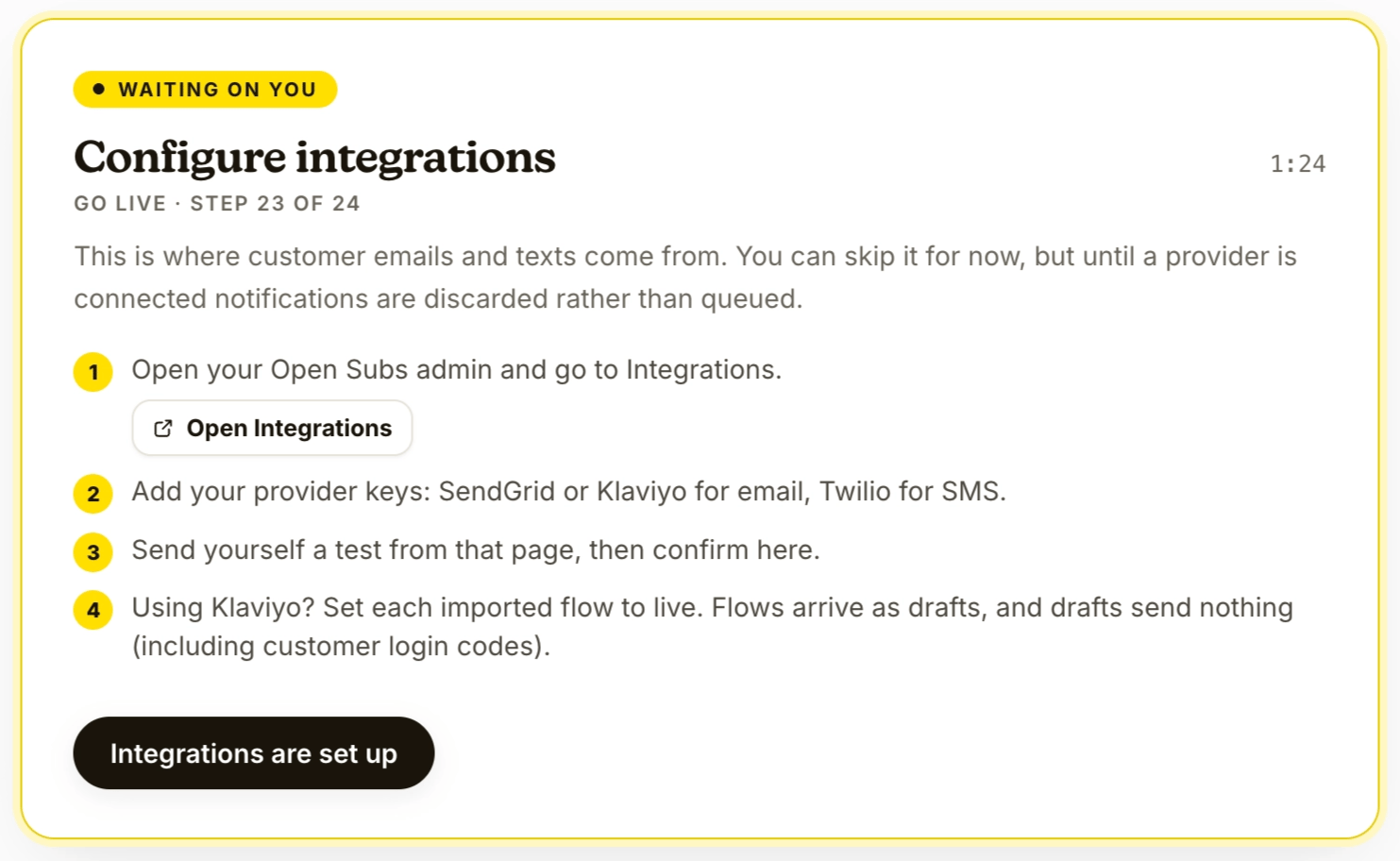
Checkpoint: provider connected and tested, or deliberately skipped. Confirm.
3
The finish
The last step, Verify the live stack, checks the whole build end to end. Then the run completes and purges every secret it held. The screen says Everything’s installed. Shoppers still see nothing: the storefront widgets stay off until you enable them.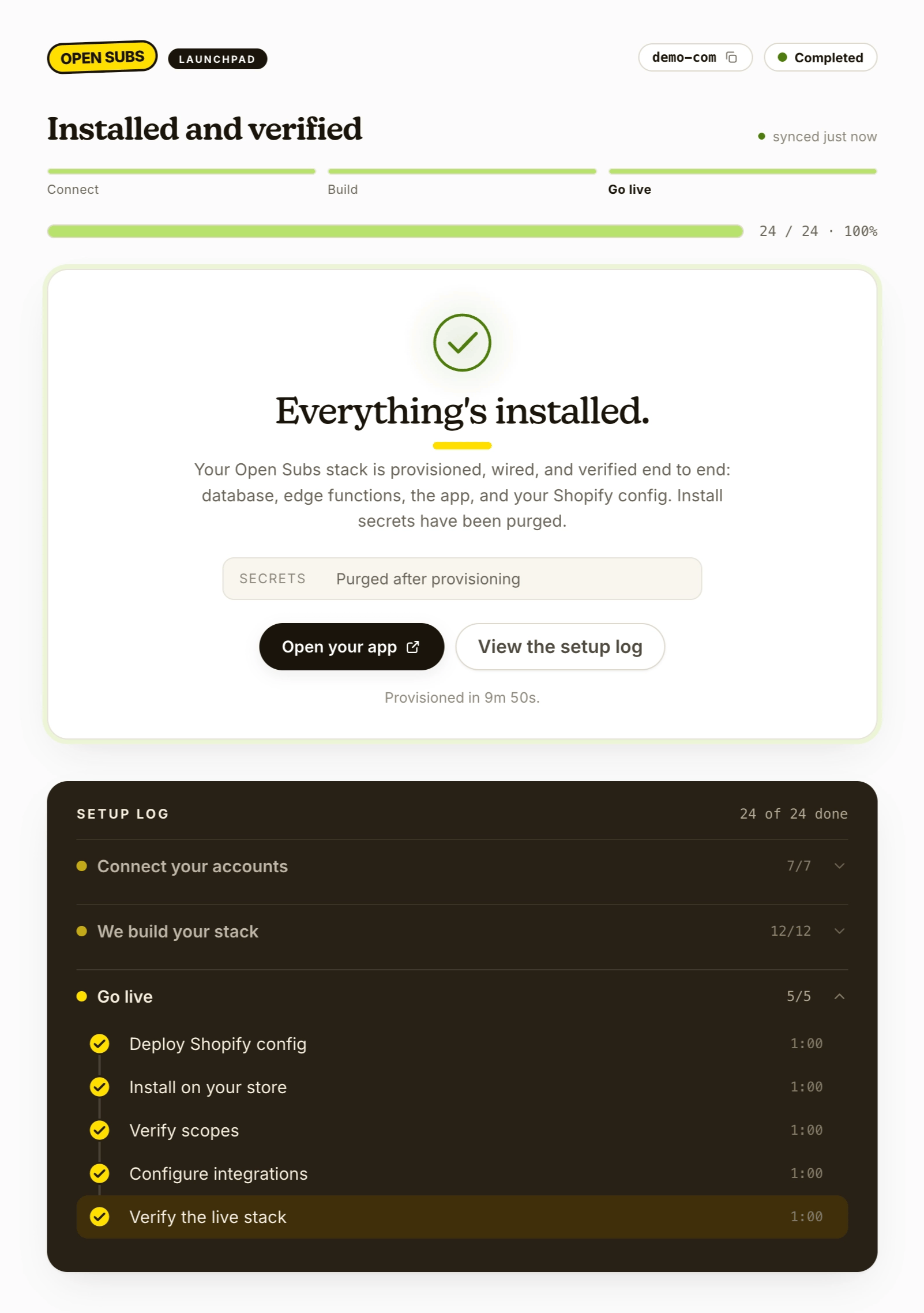
The run’s one-time database password is purged with the rest: copy it before finishing, or reset it later in the Supabase dashboard.
- Open the app from your Shopify admin (Apps > OpenSubs).
- Go to Settings > Extensions and enable the theme app embed: it opens the theme editor with the embed ready; click Save. The widget can’t render without it. Placing the widget itself is Make something to sell, on the same Extensions page.
Checkpoint: run complete · secrets purged · theme app embed on · one widget left to place.