

git pull is how our releases reach your copy. An update is four commands, run in a terminal at your repository root, in this order:
You can’t break it by re-running. Every command skips what’s already done; applied migrations stay applied. Interrupted halfway, run the same command again and it picks up where it stopped.
1
One-time prep
- Create a Supabase personal access token at supabase.com/dashboard/account/tokens.
- Put two lines in the
.envfile at your repository root: the token, and your project ref (the<ref>inhttps://<ref>.supabase.co). The update scripts read them automatically.
Checkpoint:
.env shows both lines.2
Get the new version
- Read
CHANGELOG.mdfor the version you pulled; anything needing manual attention is flagged under Action required.
3
Apply the database migrations
- Applies every pending migration to your Supabase project, in order. To preview first, run
npm run merchant:migrate -- --dry-run: it lists what would apply and changes nothing. - A one-time
adopted ... (ledger row only)line is normal bookkeeping; nothing to do.
Checkpoint: running it again reports
0 pending.4
Deploy the webhook functions
- Redeploys your Supabase Edge Functions, where Shopify’s webhooks land. If the changelog asks for just one, add
-- --onlyplus the name, like-- --only orders-webhook.
Checkpoint: the command finishes without errors.
5
Redeploy the app, last
- First time only: run
vercel linkfromapp/and pick your existing OpenSubs project. - If your Vercel project is connected to your repository, skip the command:
git pushand Vercel rebuilds on its own. - Last on purpose: at startup the app checks that every migration its code expects is applied. Deploy before migrating and it refuses API traffic with a 503 reading Database schema out of date, naming the missing migrations (When an alert opens).
Checkpoint: the deploy finishes and the admin opens clean.
Two things also get newer versions over time. One updates itself; one needs a click.
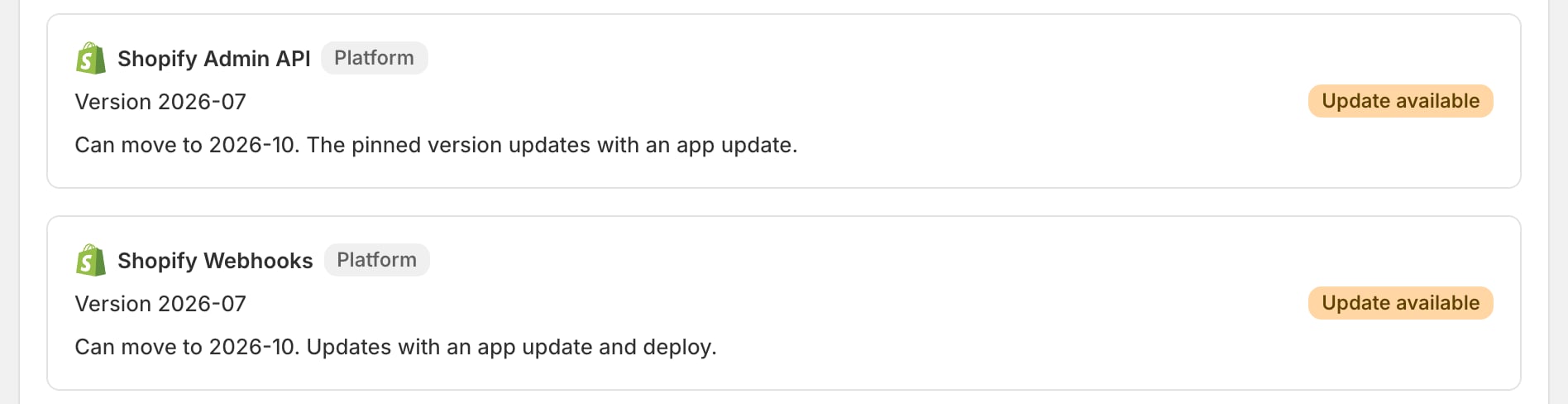
- API versions update with the platform. The versions used to talk to Shopify and your providers move forward as part of this procedure; there is nothing to set. Check Settings > Operational health, panel Integration connections: every version row should read Current. A Shopify row reading Update available or Unsupported means run this update: Update available is the routine pre-update state, Unsupported means do it soon.
- Your provider accounts update with a click. The pieces setup created inside them (SendGrid email templates, Klaviyo flows, the Gorgias sidebar widget) are not touched by this procedure. When a newer version ships, that provider’s card on Settings > Integrations shows Update available: click Update to latest.

If a step fails.
- A migration that fails partway resumes on the next run, skipping what already applied.
- The same migration failing twice is your stop sign: don’t force it or hand-edit the database; hand the error text to whoever runs your code.
- A 503 right after an update means you deployed before migrating: run the migrate step, then reload.
- Updates roll forward, never back: undoing one means restoring the database from Supabase’s Point-in-Time Recovery (Project > Database > Backups) and redeploying the previous build from Vercel.