

1
Create the action
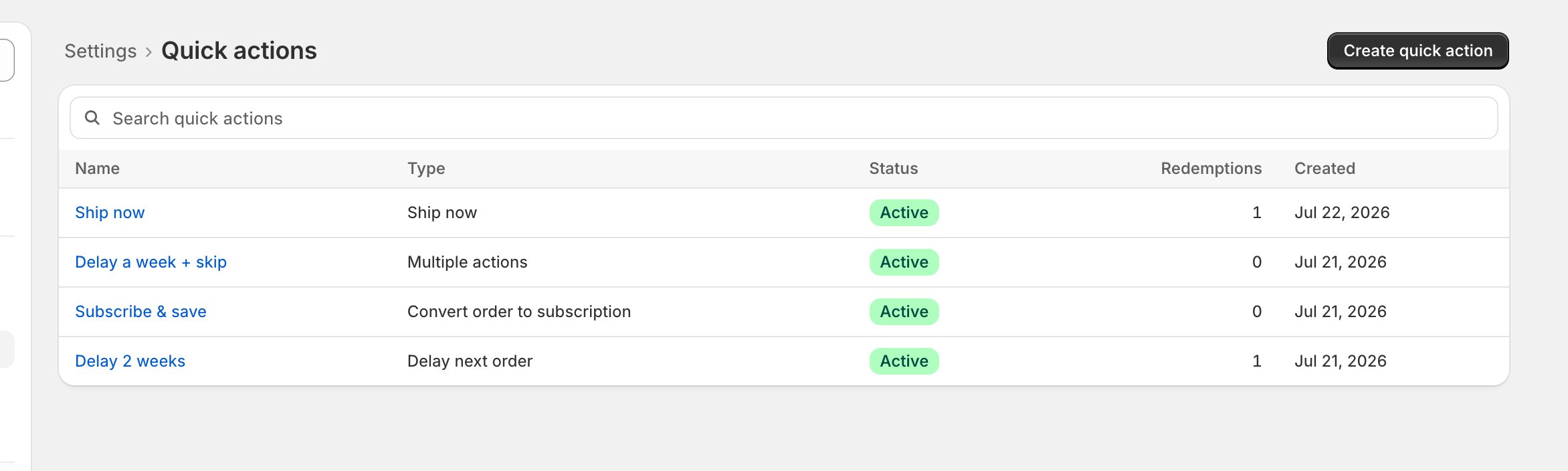
- Open Settings > Quick actions and click Create quick action.
- Give it a Name, then pick the Action type:
- Types that need details (discount code, product and variant, new frequency) ask for them right there.
Checkpoint: the action does one clear thing and its name says so.
2
Set its availability
- Under Availability: Status (Active, Paused, or Archived), Max uses per subscription (empty means unlimited), and Expires.
- Empty Expires means never; a date ends at 11:59 PM that day. Individual links have shorter lifetimes (below).
Checkpoint: status reads Active, with the limits you mean.
3
Put it to work, two ways
- In your replies: every active action appears in the Quick action link menu on a subscription’s page; a click copies a single-use, 60-minute link (When a subscriber asks for help).
- In your notifications: after the first save, a Notifications section appears; tick the sends under Add this link to notification sends, or copy its Merge tag into a template.
- Links inside notification sends are reusable for that send’s life (about 30 days).
- The classic: a dunning email with a one-tap Update payment method link; its confirmation page drops the subscriber on their subscription in the portal, signed in.
Checkpoint: the action shows in the Quick action link menu and the sends you picked.
A quick action link is a key, scoped to one subscriber. Anyone holding a live link can use it, so treat it like a signed-in session. Admin-copied links work once and die in an hour; notification-email links last the send’s life, so keep them out of anywhere public.