1
Build the audience
- Open Bulk operations, click New bulk operation, and name the run.
- Under 1. Audience, one condition is preset: Subscription status is Active. Change or delete it for a wider audience.
- Add condition stacks filters: billing date, contained products, frequency, shipping country, migration origin, customer tags, and more. Add condition group mixes “all of these” with “any of these”: one level of grouping.
- The estimate updates as you build, with a per-status breakdown; View sample opens recent matches (each has Exclude), and Download CSV saves the list.
Checkpoint: everyone on the CSV should get this change.
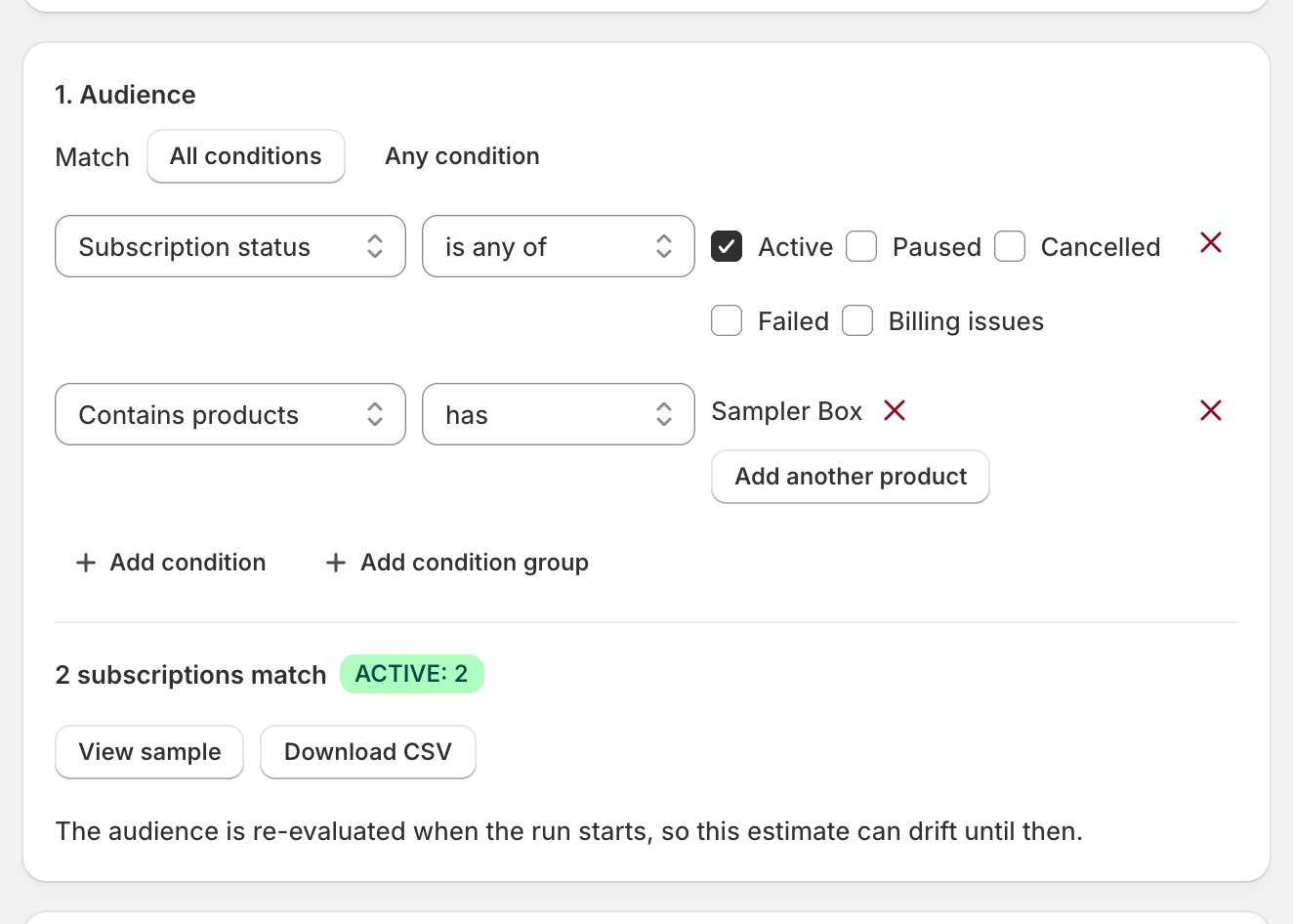
The estimate is live, not locked. The audience is re-evaluated when the run starts, so the count can drift between now and then.
2
Stack the actions
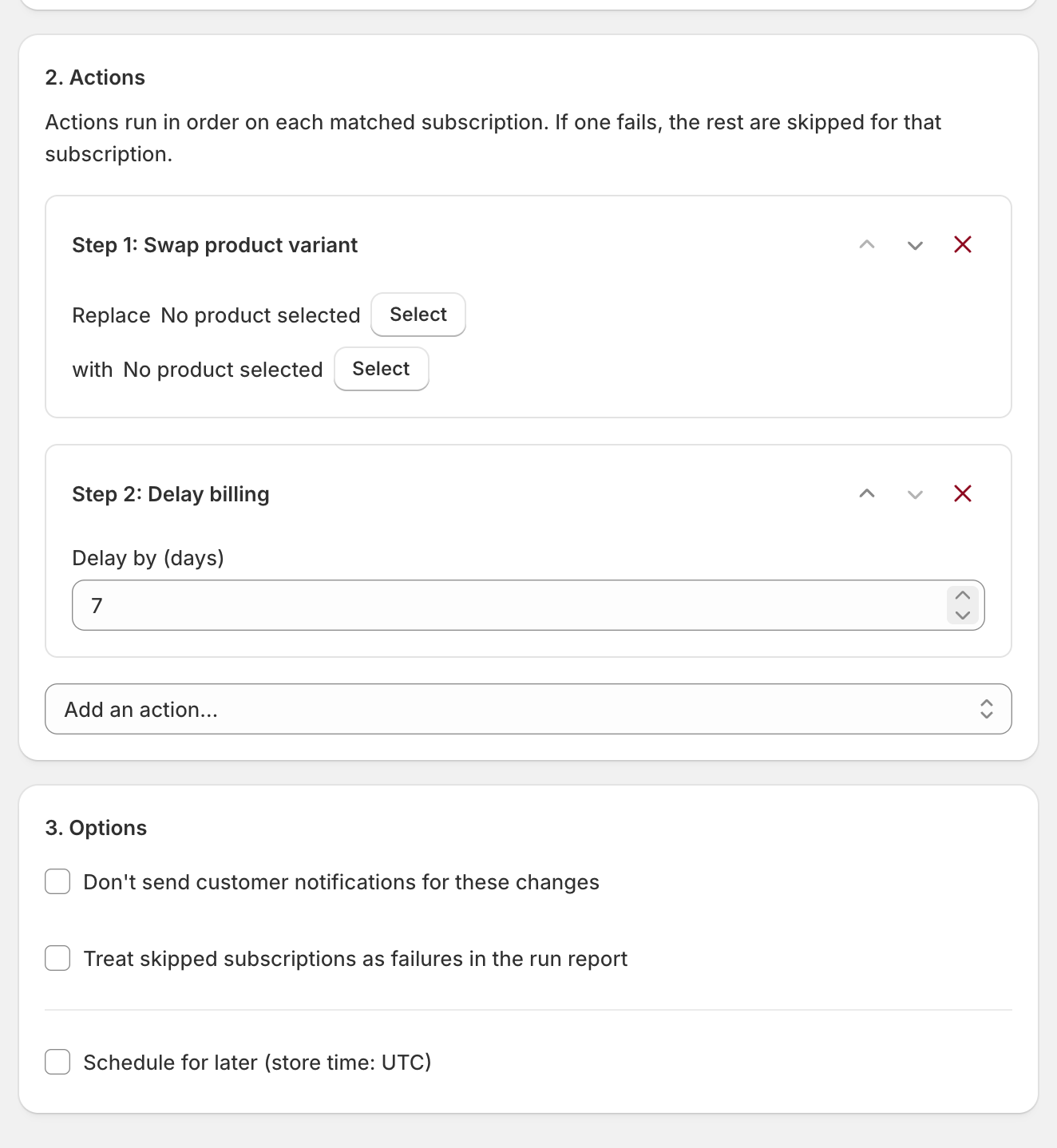
- Under 2. Actions, add up to four from the Add an action menu, in three groups.
- The Products actions target one variant, not a whole product: one action per variant.
- Actions run in order on each subscription; if one fails, the rest are skipped for that subscription only. Reorder with the arrows.
- A warning banner names any matched status an action can’t touch: skipped, not failed.
- Under 3. Options: Don’t send customer notifications for these changes keeps the run silent. Schedule for later books a date and time in your store’s timezone. Treat skipped subscriptions as failures in the run report marks the run Completed with errors when anything was skipped; the rows still read Skipped, and Retry failed doesn’t re-run them.
Checkpoint: four actions or fewer, in the order you mean them.
3
Run and watch
- Click Run operation; the confirm restates the count, breakdown, and actions. Run now starts it (Save & schedule books it if you set a date).
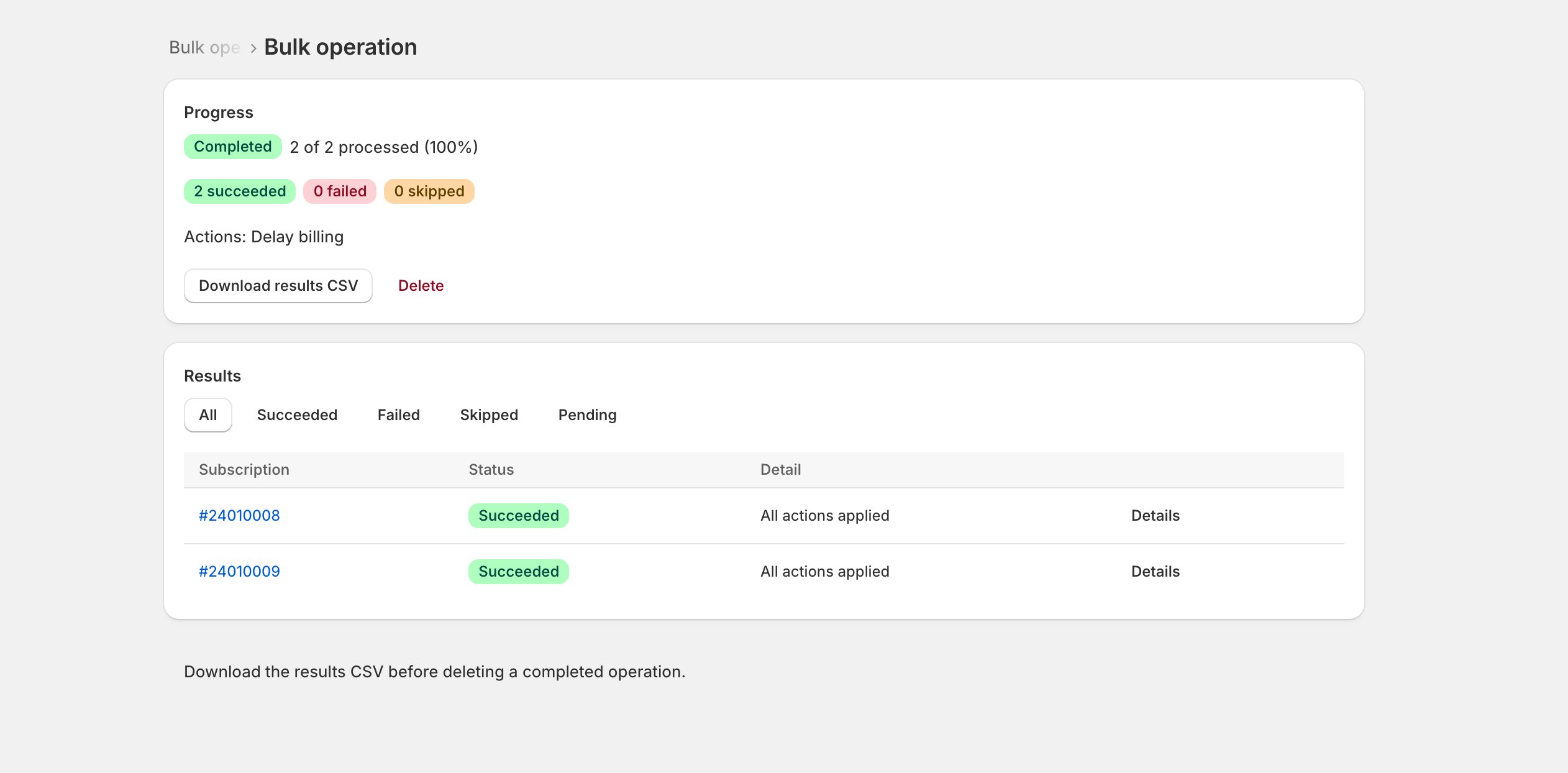
- Filter results by status (All, Succeeded, Failed, Skipped, Pending). Pause and Resume mid-run; Cancel stops the rest: processed subscriptions keep their changes, and a cancelled run can’t resume.
- When it finishes, Retry failed re-runs only the failures; Download results CSV saves the receipt.
- A run that fails outright opens a Bulk operation failed alert on Settings > Operational health (When an alert opens).
Checkpoint: no row left Pending; failures retried or explained.