

1
Find it
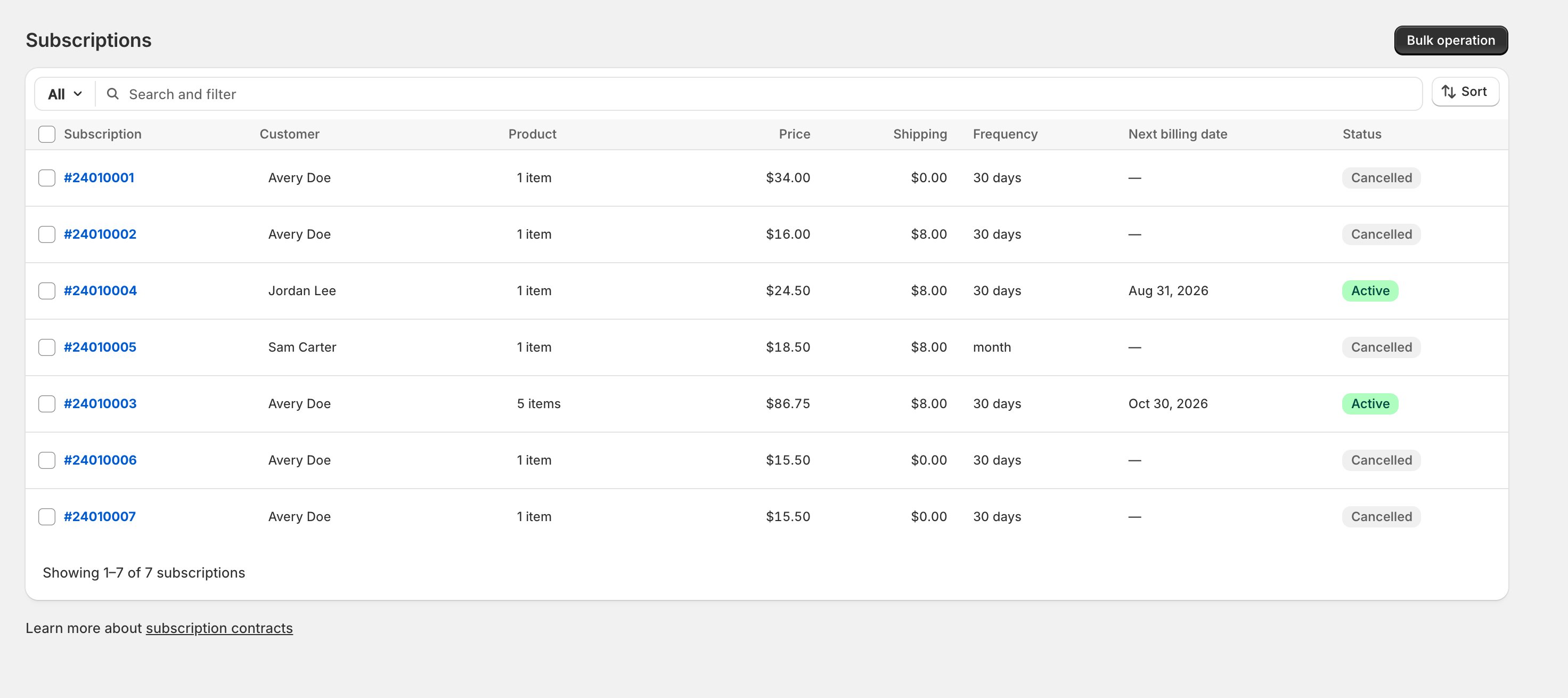
- In the OpenSubs admin, open Subscriptions; search by subscriber name, email, or subscription number.
- Narrow with the status filter (All, Active, Paused, Cancelled, Failed, Billing issues), or by Product, Frequency, or Next charge date.
- Or open the person’s page under Subscribers; every subscription they own is listed there.
- Click the row to open it.
Checkpoint: the subscription is open.
2
Change the schedule
- In the Schedule card, pick a new Next billing date, a new Frequency, or both.
- Nothing changes until you hit Save.
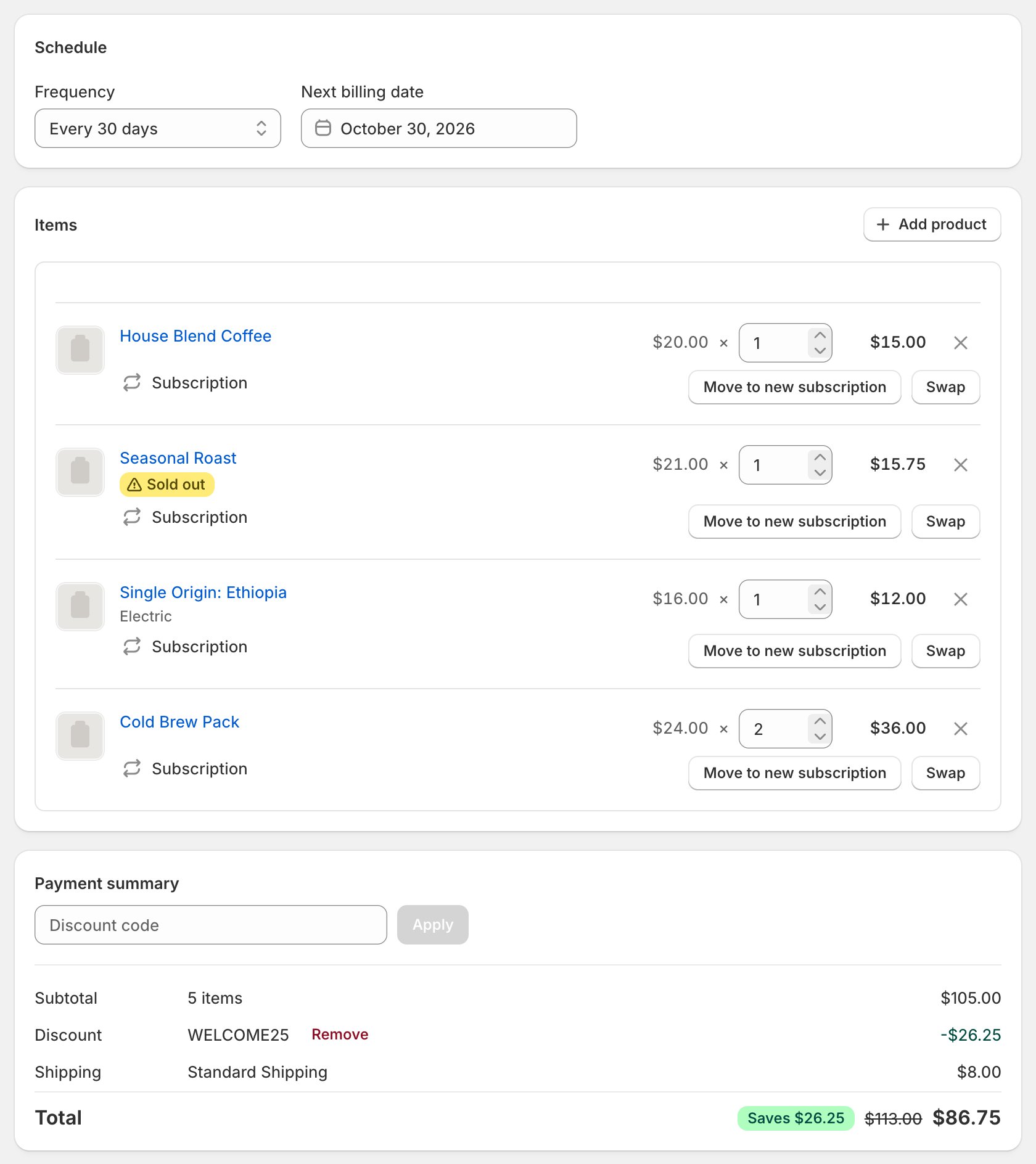
There is no skip button, on purpose. Pushing the next billing date one interval forward is the skip. Subscribers can skip themselves in their portal or by texting SKIP (When a subscriber asks for help).
3
Change the items
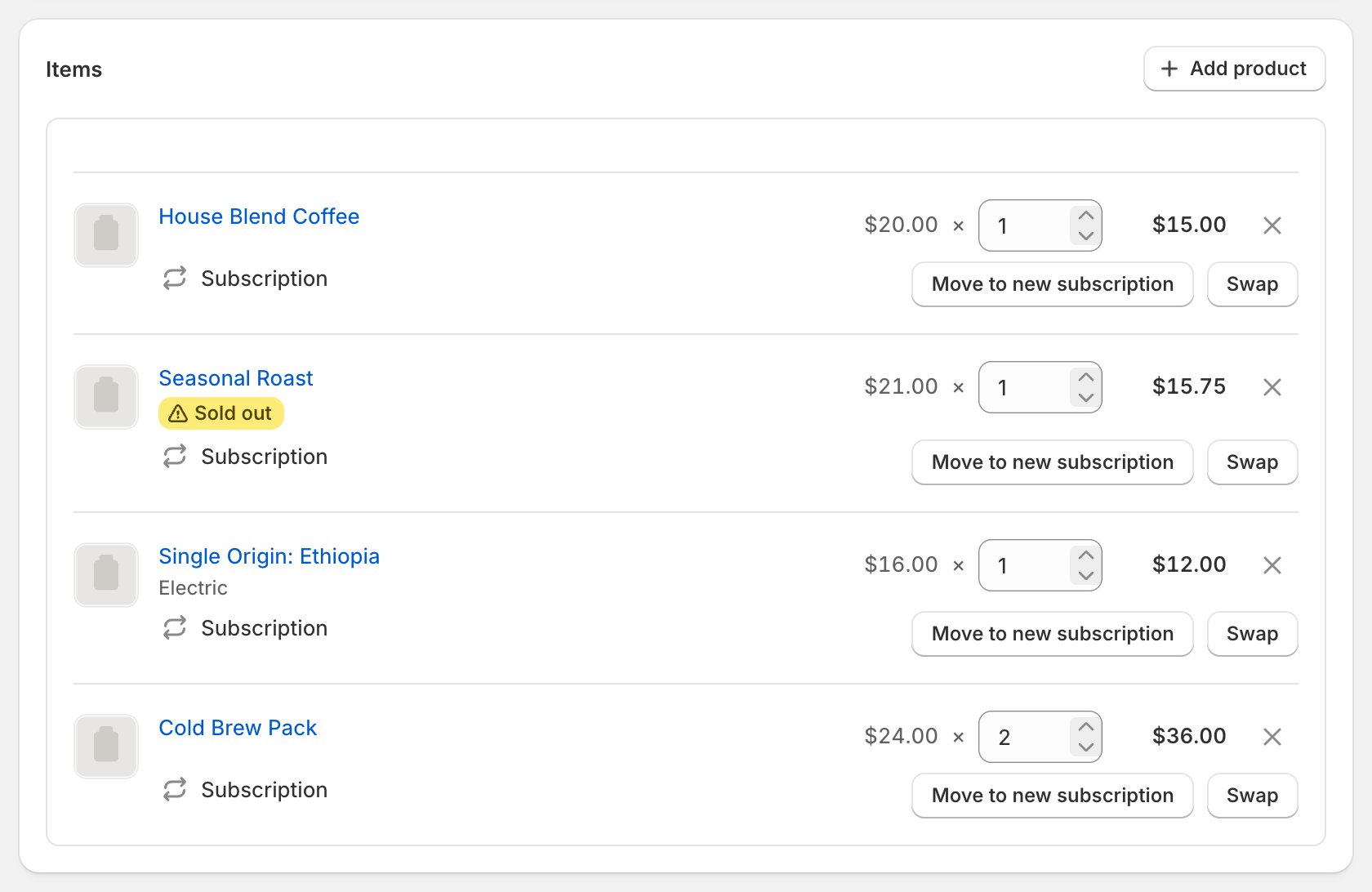
- In Items, edit a line’s quantity; it rides the same save bar.
- Add product opens your catalog: pick the product, set the quantity, and choose Subscription or One-time billing.
- Swap replaces a line’s product in one move; the remove icon deletes a line after you confirm.
- You can’t turn the last recurring line into a one-time item or remove the only line.
Checkpoint: the saved lines match the next order.
4
Change address, shipping, discounts
- The pencil on the Customer card opens Edit shipping address: pick a saved address with Use this address, add one with Add new address, or edit a saved one in place.
- Editing a saved address warns Update N subscriptions?: Save & update re-applies it to every subscription shipping to that address and re-rates their shipping, so read the count.
- The pencil on the Shipping method card: Set custom price pins a manual rate, and the button below returns it to your live rates (Use automatic rate while pinned, Refresh rate once automatic).
- On the Payment summary card, enter a code in Discount code and click Apply. Codes stack; each has a Remove button, and Remove all clears them all.
Custom shipping prices exist only here. The portal normally recalculates shipping when a subscriber edits; a pinned price stays put until you switch back to automatic.
5
Ship an order now
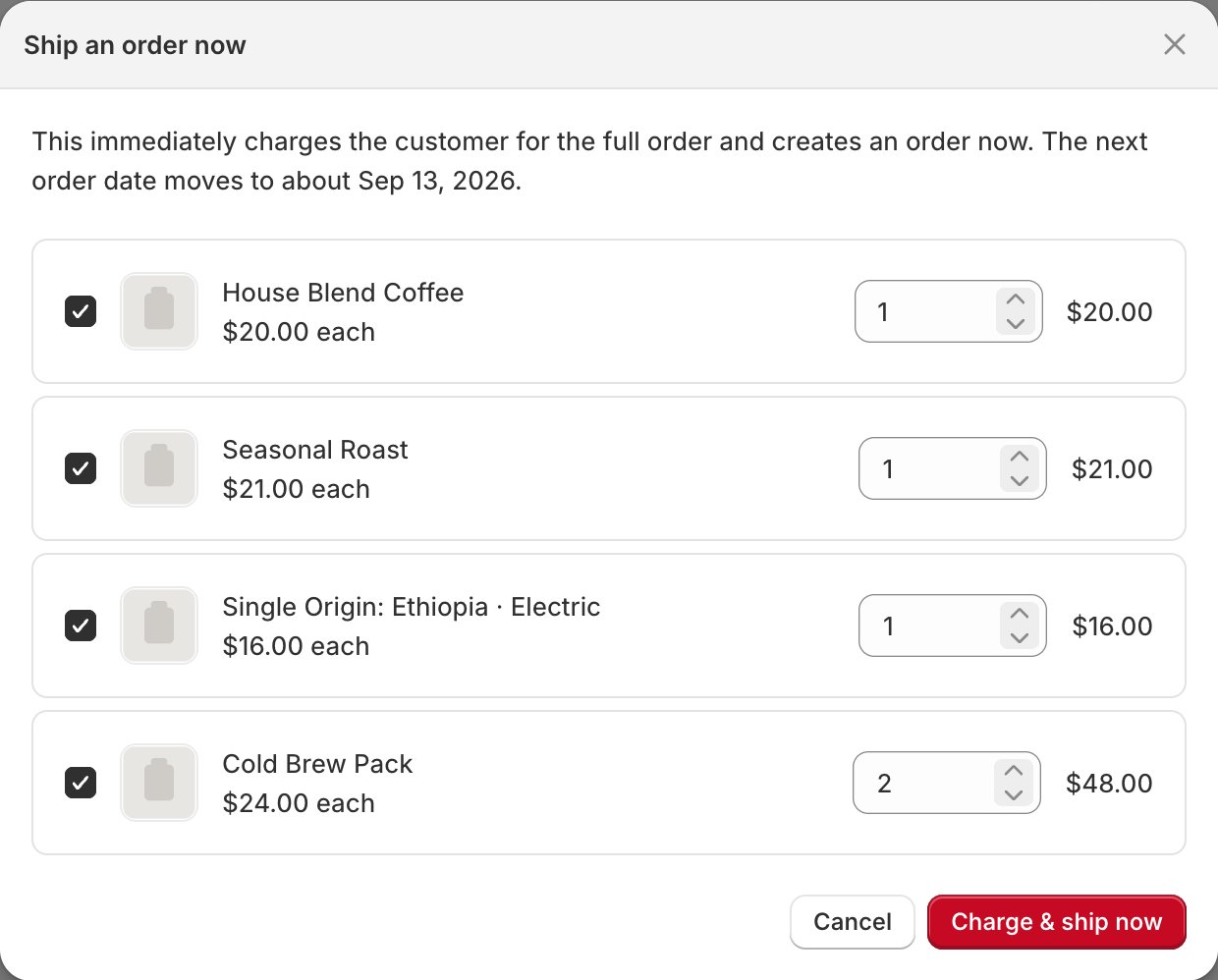
- Click Ship now in the title bar. The Ship an order now modal lists every line with a checkbox and a quantity; totals update as you tick.
- Click Charge & ship now. The saved card is charged immediately, the order is created, and the next billing date advances one interval.
Checkpoint: the new order is in the orders list.
6
Change the status
- In the title bar: Pause stops billing instantly; Resume asks for the next billing date before anything restarts.
- Cancel subscription asks for a cancellation reason (when configured); the cancellation stays in your records even if you later reactivate.
- Reactivate starts a cancelled subscription again, next billing date of your choosing.
Paused cycles are skipped, never made up. Billing restarts on the date you pick at Resume (it suggests tomorrow); nothing is owed for the gap. An admin pause runs until you resume it; portal and cancellation-flow pauses end on their own, onto the date the original schedule would bill next. A paused subscriber’s portal shows no next order date, though your admin still shows one.
Checkpoint: the status badge says what you meant.
7
Merge and split
- Merge subscriptions appears only on an active subscription whose subscriber has other active ones. The ones you pick merge in: recurring items move over, they stop billing, and one-time and gift items stay behind.
- Merged-away subscriptions end as expired, not cancelled, so they never count as churn; expired subscriptions are hidden from the list.
- To split: with two or more recurring lines, Move to new subscription on a line opens Move items to a new subscription: tick the lines to move, set the next order date, keep or change the frequency. Same card, address, and pricing; one-time and gift lines can’t move.
8
Read the history
- The History card lists every change, day by day; rows expand, and order rows link to their orders.
- Every entry names its actor: Customer (including SMS actions), Merchant, Quick action, Gorgias (Set up Gorgias), plus automated Billing, Recovery, Flow, and System.
- The store-wide version lives at Analytics > Activity, with source filters and a CSV export.
Checkpoint: the change has a row naming who.
What isn’t here, on purpose. No card entry (the payment-update email handles it: When a subscriber asks for help), no manual payment retry (the recovery schedule owns it: When a payment fails), and no delete: cancel is as far as it goes.